Install the Android app
OTPHop is not on Google Play, so you install it from a file. Android adds a few safety checks for apps that read SMS. This page shows each check and how to pass it.
Install in four steps
- Download the APK on your phone.
- Open the downloaded file. If Android says your browser or Files app is not allowed to install unknown apps, tap Settings, turn on Allow from this source, then go back.
- Tap Install. If Play Protect shows a message, see Play Protect.
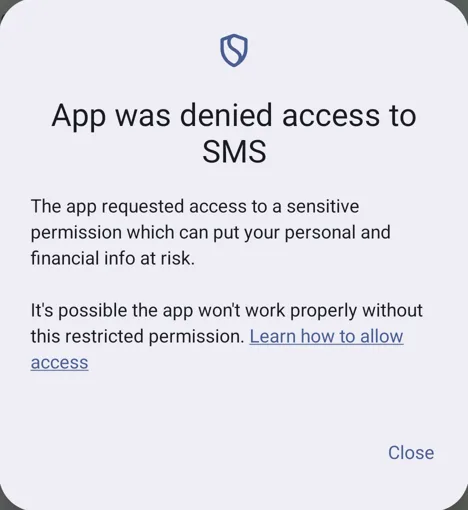
- Open OTPHop and allow the SMS permission. On Android 15 and later, Android first says App was denied access to SMS. That is expected. See App was denied access to SMS.
"Not allowed to install unknown apps"
Android lets only the app you allow install files. Allow the app you used to open the file, such as Chrome or Files.
- Tap Settings in the message.
- Turn on Allow from this source.
- Go back and tap Install.
Play Protect
Play Protect is the malware check in Google Play. It has not seen OTPHop before, because OTPHop is not on Google Play. It can show one of two messages.
App scan recommended. Tap Scan app. Play Protect sends the app to Google for a check, then lets you install it. If you prefer not to send it, tap More details, then Install without scanning.
The app is blocked. In some countries, including India, Play Protect can block an app that receives SMS when you install it from a file. It blocks the app because of the SMS permission, not because it found a problem in OTPHop. To install it, turn off the scan for one install:
- Open the Play Store, tap your profile picture, then Play Protect.
- Tap the settings icon and turn off Scan apps with Play Protect.
- Install OTPHop.
- Turn Scan apps with Play Protect on again.
Before you install, you can check that the file is the one we published. The download section shows its SHA-256 hash, its signing certificate fingerprint and a malware scan report.
App was denied access to SMS
On Android 15 and later, an app installed from a file cannot get the SMS permission until you allow it once in Settings. When OTPHop asks for SMS, Android shows App was denied access to SMS in place of the usual question. Tap Close, then:
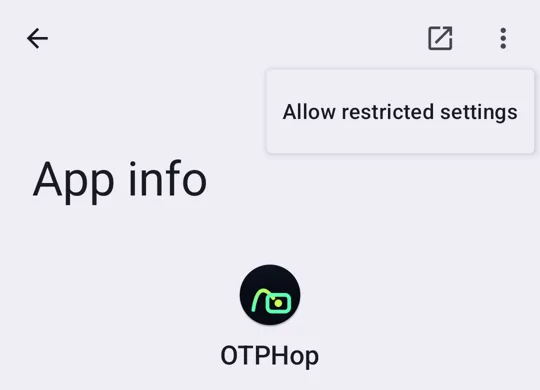
- Open Settings > Apps > OTPHop. You can also press and hold the OTPHop icon and tap App info.
- Tap the three-dot menu at the top right.
- Tap Allow restricted settings. If Android asks, confirm with your PIN or fingerprint.
- Open OTPHop again and tap Allow SMS access. Android now asks Allow OTPHop to send and view SMS messages? Tap Allow.
Codes stop after a while
Many phones close apps in the background to save battery. OTPHop asks you to let it run in the background when you first open it. Some brands, such as Xiaomi, Samsung, OnePlus, Oppo, Vivo and Realme, add their own battery settings on top.
dontkillmyapp.com has the steps for each brand. Pick your phone's brand and follow the steps for OTPHop.
Update the app
The app does not update by itself. Download the new APK from this site and install it over the old one. Your pairings and license stay. Android installs an update only when it is signed with the same key, so a changed file cannot replace your copy.
Still stuck
Write to support@otphop.com. Tell us your phone brand and model, the Android version (Settings > About phone) and the exact message you see. A screenshot helps.